


 297
297
This guide explains how to configure NewsLeecher with your SunnyUsenet account. The setup uses NewsLeecher’s server menu, where you will add the SunnyUsenet server address, enter your login details, choose the correct port, and save the connection.
Install NewsLeecher
Go to the official NewsLeecher website and install the latest version of the newsreader.
Follow the installer prompts until NewsLeecher is ready to open.
Open the Server Setup Menu
After installation, launch NewsLeecher.
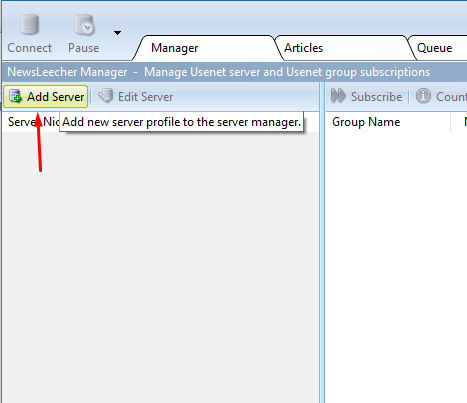
In the top-right corner of the application, click Add Server. This opens the server settings screen where you will create a new SunnyUsenet connection.
Add Your SunnyUsenet Account Details
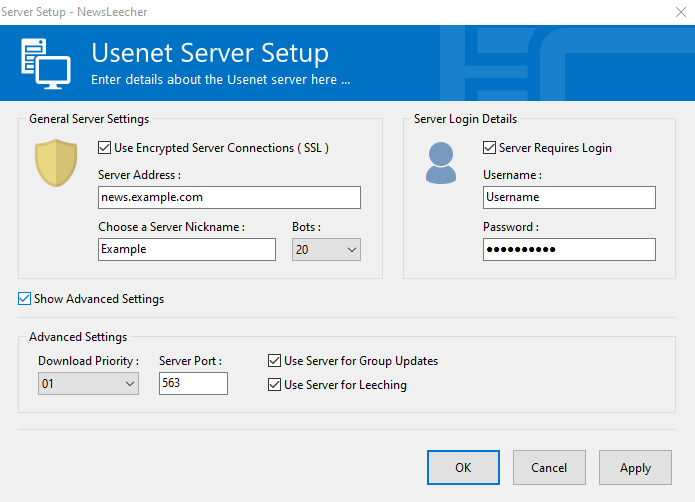
In the server settings screen, create a new server entry for SunnyUsenet.
Check Server Requires Login so NewsLeecher shows the username and password fields.
Enter the following details:
- Server Nickname: SunnyUsenet
- Server Address: news.sunnyusenet.com
- Username: Your SunnyUsenet username
- Password: Your SunnyUsenet password
Use the same username and password assigned to your SunnyUsenet account.
Choose SSL and Port Settings
For encrypted access, check Use Encrypted Server Connections (SSL).
Use these port settings:
- SSL enabled: 563
- SSL disabled: 119
SunnyUsenet recommends SSL on port 563 for a protected connection.
If you need to adjust additional connection options, enable Show Advanced Settings in NewsLeecher.
Save the Server Settings
After entering your server address, login details, SSL option, and port, click Apply.
Then click OK to close the settings screen.
NewsLeecher should now be configured to connect through SunnyUsenet.
Start Using NewsLeecher with SunnyUsenet
Once the server is saved, NewsLeecher can connect to SunnyUsenet for Usenet access.
If the connection does not work, review the server address, username, password, SSL setting, and port number. A mismatch between SSL and the selected port is one of the most common setup issues

