


 259
259
This guide walks you through configuring Newsbin Pro to connect to your SunnyUsenet account. The steps follow the actual Newsbin Pro setup flow, with a clearer structure so you can move through it quickly.
Install and Open Newsbin Pro
Download and install the latest version of Newsbin Pro from the official site. Once installed, launch the application.
On first launch, Newsbin Pro may prompt you to begin setup. If not, you can open the configuration manually.
Open Server Settings
To add your SunnyUsenet connection:
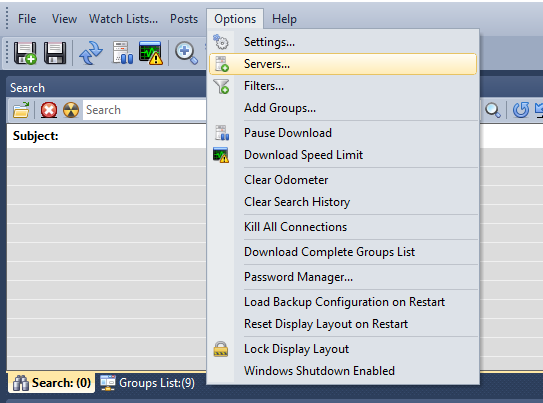
- Click Options in the top menu
- Select Servers from the dropdown
- Click New Server
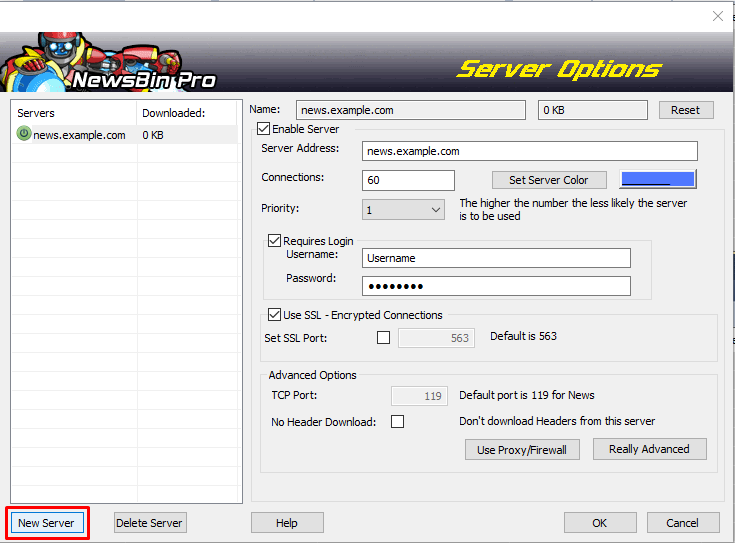
A dialog box will appear prompting you to create the server profile.
Create the Server Profile
In the dialog box:
- Server Name: Enter a name you will recognize (for example, “SunnyUsenet”)
- Copy Settings From: Leave this blank unless you want to duplicate an existing server setup
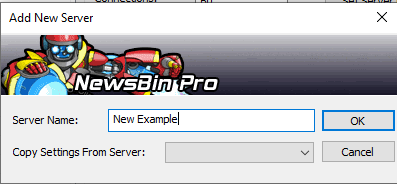
Click OK to proceed to the full server configuration screen.
Enter SunnyUsenet Server Information
Fill in the server fields using your SunnyUsenet details:
- Server Address: news.sunnyusenet.com
- Port: 563 (SSL) or 119 (standard)
- Connections: Start with a moderate value (for example, 10–20) and adjust if needed
Account Login
Before entering your credentials, enable authentication:
- Check Requires Login
Then enter:
- Username: Your SunnyUsenet username
- Password: Your SunnyUsenet password
This allows Newsbin Pro to authenticate with your account.
Enable SSL (Recommended)
To use an encrypted connection:
- Check Use SSL - Encrypted Connections
- Set the Port to 563
Both steps are required. Changing the port alone does not enable SSL.
This encrypts the connection between Newsbin Pro and the Usenet server and is the preferred setup for most users.
Save and Connect
After entering your settings:
- Save the server configuration
- Allow Newsbin Pro to connect
You should see the server status change to active once the connection is established.
Start Using Newsbin Pro
With the server connected, you can begin:
- Retrieving headers from newsgroups
- Opening NZBs in Newsbin Pro
At this point, your setup is complete and connected to SunnyUsenet.
Troubleshooting
If the connection does not work as expected:
- Recheck your username and password
- Confirm the correct port (563 for SSL)
- Verify SSL is enabled if using port 563
- Adjust connection count if performance is inconsistent
- Check firewall or security software for blocked connections

